Install and Share an HP LaserJet 1020 on Debian

An HP LaserJet 1020 connected by USB can become a shared printer for your home network. Debian handles printing through CUPS, HPLIP provides HP printer support, and Avahi makes the shared queue discoverable on the LAN, including from an iPhone through AirPrint.
This guide covers installation, a local test print, and network sharing. Run the commands on the Debian computer connected to the printer.
1. Connect the printer
Connect the HP LaserJet 1020 to the Debian computer by USB and turn it on. Load paper and make sure the printer is ready before continuing.
2. Install HPLIP, CUPS, and Avahi
Update the package index and install the printing tools:
sudo apt update
sudo apt install hplip hplip-gui cups cups-client avahi-daemon
sudo systemctl enable --now cups avahi-daemon
hplip-gui provides the graphical HP setup tool. On a server without a desktop, omit that package and use the terminal setup option in step 4.
3. Add your user to the printer groups
Run this from your regular user account:
sudo usermod -aG lp,lpadmin "$USER"
The lpadmin group allows printer administration. Log out and back in for the new group membership to take effect; if you are connected over SSH, reconnect.
4. Set up the printer and HP plugin
On a Debian desktop, launch the HP setup tool:
hp-setup
For a terminal-only session, use interactive mode instead:
hp-setup -i
Choose the USB connection, select the LaserJet 1020, and follow the prompts to create its CUPS queue. Use HP1020 as the queue name if you want to copy the commands below unchanged.
The LaserJet 1020 requires HP's proprietary plugin for printing with HPLIP, according to HP's plugin documentation. Allow setup to install it when prompted. If the plugin was not installed during setup, run:
hp-plugin -i
Follow the download, license, and authentication prompts, then rerun hp-setup or hp-setup -i if queue creation did not finish. The plugin download requires internet access.
The graphical and terminal setup modes are documented in the Debian hp-setup manual.
5. Print a local test page
Check the installed queue names:
lpstat -p -d
The examples use HP1020. If setup created a different name, replace HP1020 in every command below with that exact queue name. A message saying there is no default destination is fine when you specify the queue with -d.
Send a CUPS test page:
lp -d HP1020 /usr/share/cups/data/testprint
Confirm that a page physically prints before enabling network sharing. A job being accepted into the queue alone does not confirm successful printing.
6. Share the queue on your LAN
Enable CUPS printer sharing and mark this queue as shared:
sudo cupsctl --share-printers
sudo lpadmin -p HP1020 -o printer-is-shared=true
sudo systemctl restart cups avahi-daemon
These are the sharing settings described in the CUPS printer sharing guide. By default, --share-printers allows clients on the same subnet to print.
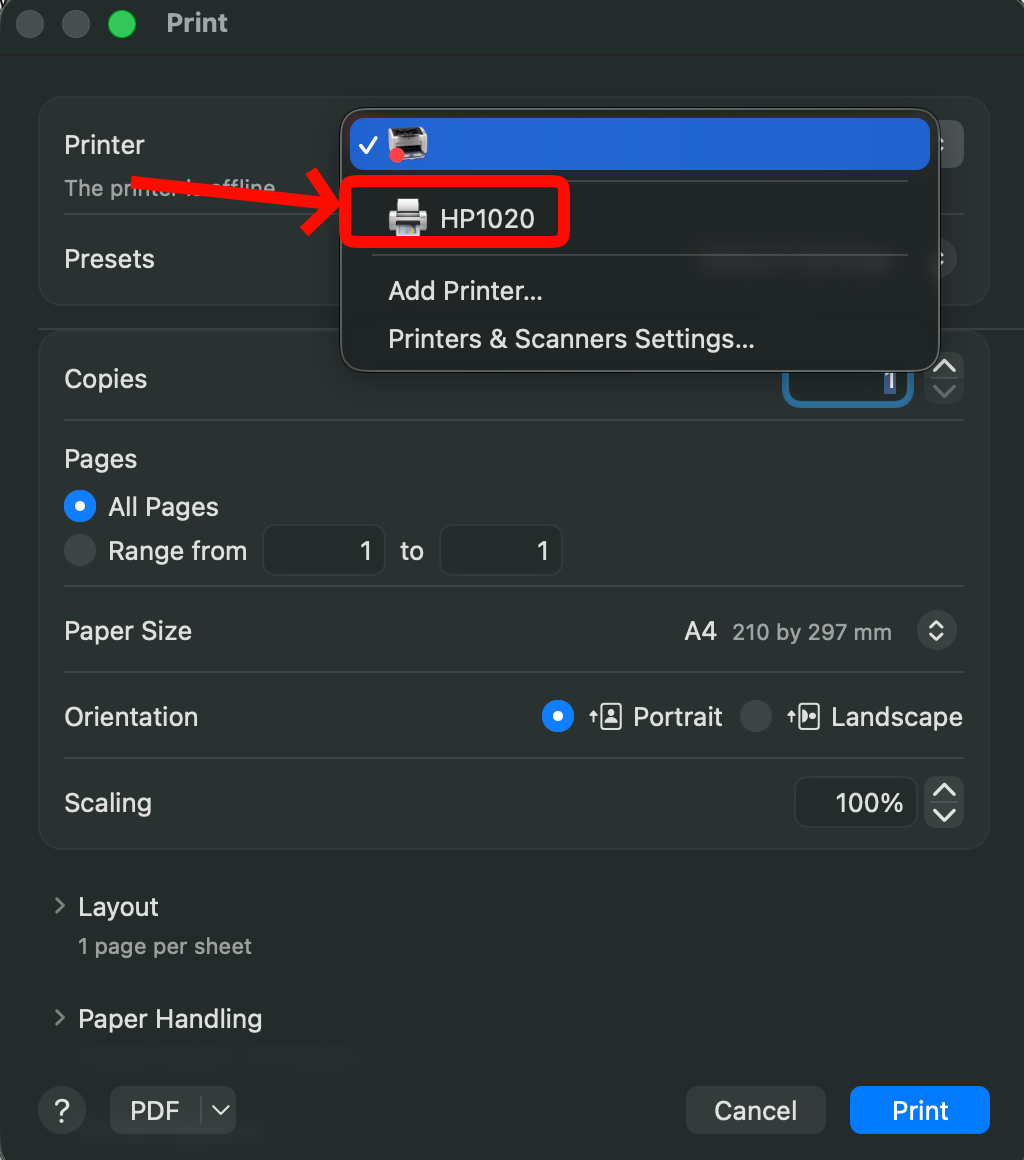
Avahi advertises the shared printer on the LAN, so it automatically appears in the printer list on an iPhone or MacBook. You do not need to look up the Debian host's IP address or enter the printer's network address manually.
Previously, when I set this up on Windows, I had to find the host's IP address and work through a long, tedious installation process. With CUPS and Avahi on Debian, discovery is automatic: once the queue is shared, I can select it from my Apple devices on the same LAN.
7. Print from an iPhone
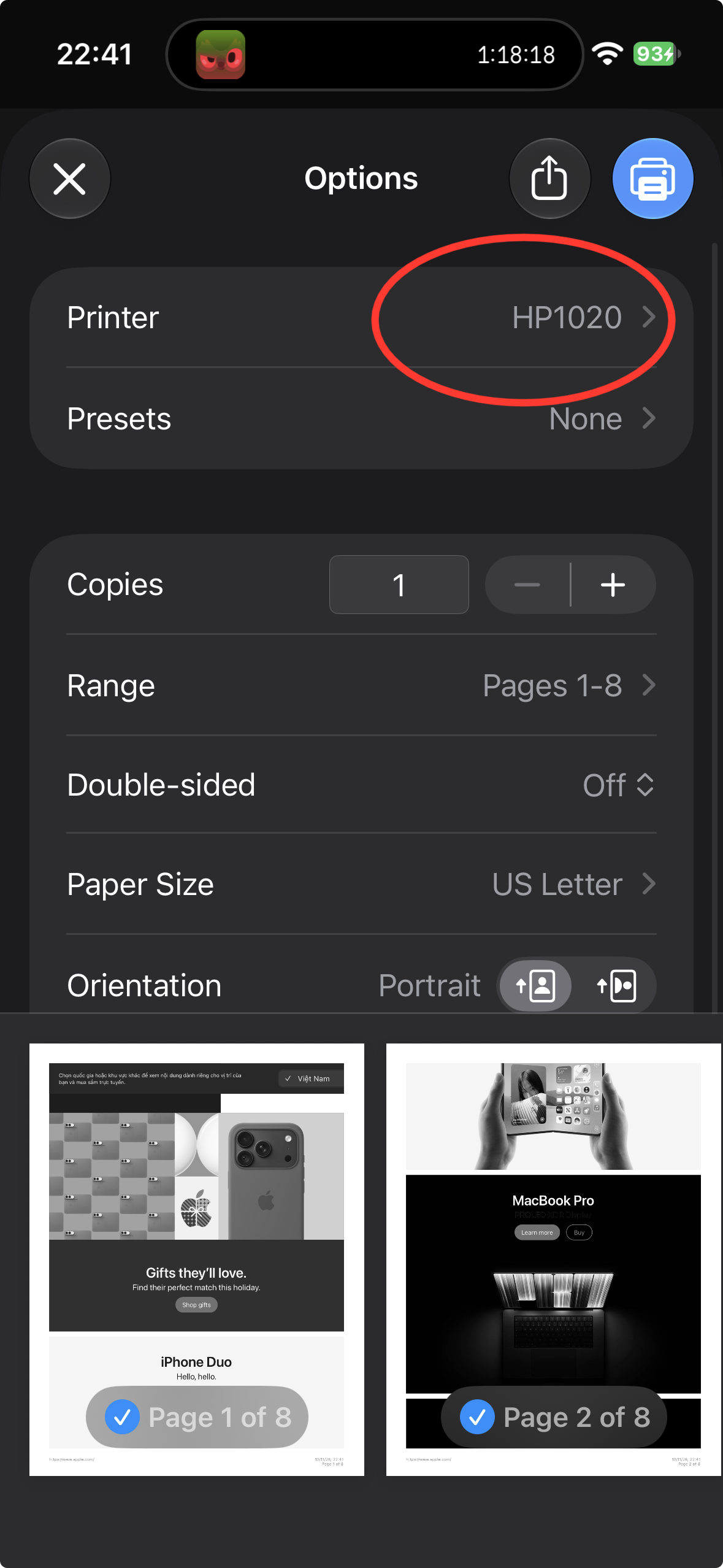
Connect the iPhone to the same LAN as the Debian computer. Open a document or photo, choose Share → Print, tap Select Printer, and select the shared queue.
CUPS can advertise shared queues for AirPrint discovery through Avahi; see the OpenPrinting discussion on sharing older printers. The iPhone sends the job to Debian, which uses HPLIP to print over USB.
If the queue does not appear, check that both services are running:
systemctl status cups avahi-daemon
If a firewall is enabled, allow IPP traffic on TCP port 631 and mDNS discovery on UDP port 5353 from your LAN. Guest Wi-Fi, client isolation, or separate VLANs can prevent discovery even when both devices have internet access.
Reboots and printer status
The CUPS queue and sharing settings persist across reboots. Because CUPS and Avahi were enabled with systemctl enable --now, they start automatically when Debian boots.
For printing to work, the Debian computer must be powered on and awake, and the printer must be powered on and connected by USB. Other devices on the LAN need access to the Debian computer.
Check printer status and pending jobs with:
lpstat -p -d
lpstat -o HP1020
If jobs remain queued without printing, check the USB connection, paper, and HP plugin installation first. For service errors, inspect the CUPS journal:
sudo journalctl -u cups -b --no-pager -n 50
The shared printer on iPhone and MacBook
With Avahi advertising the queue, HP1020 appears in the printer list on both devices.
iPhone
Select HP1020 in the AirPrint options:
MacBook
The shared HP1020 queue also appears in the macOS print dialog: