Encrypt Pi-hole Upstream DNS with dnscrypt-proxy on Debian 13

Pi-hole is a network-wide DNS sinkhole that can block ads and trackers by filtering requests to domains on its blocklists. It also caches answers and shows which devices made DNS requests. These features work only for requests that pass through Pi-hole.
My use case is Chrome's Secure DNS, which uses DNS-over-HTTPS (DoH). When Chrome is set to a custom secure DNS provider, its lookups go directly to that provider and bypass Pi-hole, so Pi-hole cannot filter or log them. I wanted to keep Pi-hole in the request path while encrypting the connection from Pi-hole to its upstream resolver. To do that, clients need to use Pi-hole for DNS, and Pi-hole needs an encrypted upstream.
This guide adds dnscrypt-proxy on a Debian 13 host and configures it to use Quad9 over DoH. Pi-hole runs in Docker, and the proxy listens on the Docker bridge gateway so the container can reach it. This encrypts the Pi-hole-to-Quad9 connection; it does not configure Pi-hole to provide DoH or DNS-over-TLS (DoT) to clients. A client configured to send DoH or DoT directly to an external provider will still bypass Pi-hole.
How the DNS path works
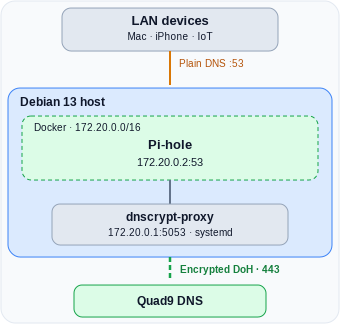
The LAN-to-Pi-hole and container-to-proxy connections use ordinary DNS. The proxy encrypts the upstream connection from the Debian host to Quad9.
This guide assumes Pi-hole v6 in Docker Compose, a standard Docker bridge network, and Debian 13 with sudo access. Commands use example addresses; replace them with values from your network.
| Component | Example |
|---|---|
| LAN subnet | 192.168.1.0/24 |
| Debian host LAN address | 192.168.1.10 |
| Docker bridge gateway | 172.20.0.1 |
| Pi-hole container address | 172.20.0.2 |
| Proxy address and port | 172.20.0.1:5053 |
1. Check the current upstream traffic
Install tcpdump and dig on the Debian host:
sudo apt update
sudo apt install tcpdump dnsutils
In one terminal, watch for DNS packets to the current Quad9 IPv4 resolvers:
sudo tcpdump -ni any -s0 -vv \
  '((udp or tcp) and port 53) and (host 9.9.9.9 or host 149.112.112.112)'
In another terminal, send a unique query through Pi-hole. Replace the address with the Debian host's LAN address:
dig @192.168.1.10 "test-$(date +%s).example.com"
If Pi-hole sends this query directly to Quad9 over ordinary DNS, the capture can show the queried name and a packet similar to:
172.20.0.2 > 9.9.9.9.53: A? test-XXXXXXXXXX.example.com.
The unique name avoids relying on a cached answer.
2. Find the Docker bridge gateway
Inspect the networks attached to the Pi-hole container:
docker inspect pihole --format '{{json .NetworkSettings.Networks}}'
Use the network name shown in that output to inspect its subnet and gateway:
docker network inspect YOUR_NETWORK_NAME --format '{{json .IPAM.Config}}'
For example, a result containing "Gateway":"172.20.0.1" means the Debian host is reachable at 172.20.0.1 from that bridge. Use your actual gateway in the steps below. The Docker subnet and gateway are separate from the physical LAN subnet.
3. Install dnscrypt-proxy
Debian 13 provides the package and systemd socket and service units:
sudo apt update
sudo apt install dnscrypt-proxy
Confirm the installed version and available units:
dnscrypt-proxy -version
systemctl cat dnscrypt-proxy.socket dnscrypt-proxy.service
The socket unit accepts DNS on behalf of the service. We will move its listeners to the Docker bridge gateway on port 5053, leaving port 53 for Pi-hole.
4. Set the proxy listener
Create a systemd drop-in for the socket:
sudo systemctl edit dnscrypt-proxy.socket
Add these settings above the comment that says edits below it are discarded. Replace the example gateway with yours:
[Socket]
ListenStream=
ListenDatagram=
ListenStream=172.20.0.1:5053
ListenDatagram=172.20.0.1:5053
The empty directives clear the unit's original TCP and UDP listeners before adding the new ones. Save and close the editor, then apply the drop-in:
sudo systemctl daemon-reload
sudo systemctl restart dnscrypt-proxy.socket
Check that the socket is listening on both protocols:
systemctl status dnscrypt-proxy.socket --no-pager
sudo ss -lntup | grep ':5053'
If it fails to bind, confirm the gateway address exists on the host and that another process is not using the port.
5. Select Quad9 DoH
Back up the configuration before editing it:
sudo cp /etc/dnscrypt-proxy/dnscrypt-proxy.toml \
  /etc/dnscrypt-proxy/dnscrypt-proxy.toml.bak
Open the file:
sudo nano /etc/dnscrypt-proxy/dnscrypt-proxy.toml
Set the following options, changing existing values rather than adding duplicate keys:
listen_addresses = []
server_names = ['quad9-doh-ip4-port443-filter-pri']
An empty listen_addresses tells dnscrypt-proxy to use the systemd sockets. The selected resolver is Quad9's IPv4 DoH service on port 443 with threat blocking enabled and no EDNS Client Subnet forwarding. Quad9's service address documentation describes the corresponding filtering and privacy options.
Check that the resolver name exists in the resolver sources installed with your package:
sudo dnscrypt-proxy \
  -config /etc/dnscrypt-proxy/dnscrypt-proxy.toml \
  -list-all | grep -F 'quad9-doh-ip4-port443-filter-pri'
If it is not listed, refresh or check the resolver sources for your installed version before continuing. Start the proxy service and inspect its logs:
sudo systemctl restart dnscrypt-proxy.service
sudo systemctl status dnscrypt-proxy.service --no-pager
sudo journalctl -u dnscrypt-proxy.service -n 30 --no-pager
The log should identify the selected resolver and indicate that a live server is ready. Do not continue if the service reports that no usable resolver is available.
6. Test the proxy from the host and container
First query the proxy from Debian:
dig @172.20.0.1 -p 5053 example.com
The answer should show status: NOERROR and SERVER: 172.20.0.1#5053.
Then test from the Pi-hole container. If it has dig installed:
docker exec pihole dig @172.20.0.1 -p 5053 example.com
If it does not, use a temporary diagnostic container attached to the same Docker network:
docker run --rm --network YOUR_NETWORK_NAME nicolaka/netshoot \
  dig @172.20.0.1 -p 5053 example.com
Replace the address and network name with your values. If the host query works but the container query times out, check the host firewall rules for TCP and UDP port 5053 from the Docker subnet. Keep Pi-hole on its existing upstream until this container-side test succeeds.
7. Point Pi-hole to dnscrypt-proxy
In the Compose file for Pi-hole, change its upstream from the public IP addresses to the Docker gateway and port:
FTLCONF_dns_upstreams: "172.20.0.1#5053"
For example, the surrounding service may look like this:
services:
  pihole:
    image: pihole/pihole:latest
    container_name: pihole
    restart: unless-stopped
    environment:
      TZ: Etc/UTC
      FTLCONF_webserver_api_password: ${PIHOLE_PASSWORD}
      FTLCONF_dns_listeningMode: ALL
      FTLCONF_dns_upstreams: "172.20.0.1#5053"
    volumes:
      - ./etc-pihole:/etc/pihole
Keep the web interface password in an environment file rather than placing it directly in the Compose file. Pi-hole accepts a custom upstream port using the IP#port form; see its Docker configuration reference.
Recreate the Pi-hole container so it receives the changed environment value:
docker compose up -d --no-deps --pull never pihole
Check the configured value in the running container:
docker exec pihole printenv FTLCONF_dns_upstreams
It should print 172.20.0.1#5053. Then test a new query through Pi-hole:
dig @192.168.1.10 "test-$(date +%s).example.com"
Replace 192.168.1.10 with the Debian host's LAN address. A NOERROR response confirms DNS resolution through Pi-hole, but by itself does not prove that the upstream traffic is encrypted.
8. Check the upstream traffic
Repeat the DNS capture from step 1 while generating several unique queries through Pi-hole. No matching outbound port 53 packets to 9.9.9.9 or 149.112.112.112 should appear for those queries.
You can also look for HTTPS connections from the Debian host:
sudo ss -tnp | grep ':443'
sudo tcpdump -ni any 'tcp port 443'
Port 443 traffic alone does not prove that a connection carries DNS. Correlate it with dnscrypt-proxy's resolver logs and your test queries. Do not use a successful dig response as the only evidence of encryption.
Operational notes
DNS inside the LAN is still plaintext
This setup encrypts the connection from dnscrypt-proxy to Quad9. DNS between LAN clients and Pi-hole, and between Pi-hole and dnscrypt-proxy, remains ordinary DNS. Devices can also bypass Pi-hole if an application uses its own DoH resolver.
Keep the Docker gateway stable
The address in the systemd socket and Pi-hole configuration must match the Docker bridge gateway. A recreated Docker network can use a different subnet. For a persistent setup, assign the network an explicit subnet and gateway in Compose, and make sure that bridge is available when the socket starts during boot.
Understand the socket activation trade-off
dnscrypt-proxy's upstream project describes systemd socket activation as untested and unsupported. It is the model used by the Debian package and Pi-hole's Debian 13 guide, but should be monitored after service or package updates. If the proxy fails after a restart or boot, inspect both the socket and service journals. A conventional service with its own listener is an alternative if socket activation proves unreliable.
Quad9 is still the DNS operator
DoH hides DNS query contents from observers between your host and Quad9. Quad9 still receives the queries, and DNS encryption does not hide destination IP addresses or protect unrelated unencrypted traffic.
Troubleshooting
| Symptom | Check |
|---|---|
| Socket will not start | Confirm the Docker gateway exists and port 5053 is unused. Review journalctl -u dnscrypt-proxy.socket. |
| Proxy service has no live resolver | Check the resolver name, resolver source files, host connectivity, and journalctl -u dnscrypt-proxy.service. |
| Host query works but container query times out | Check the Docker network, host firewall, and whether the socket listens on the bridge gateway. |
| Pi-hole cannot resolve names | Confirm FTLCONF_dns_upstreams is gateway#5053 and the proxy responds from the container. |
| It stops working after reboot | Check that the Docker bridge gateway stayed the same and was available when the socket started. |
| Plaintext DNS is still visible | Check Pi-hole's configured upstreams, other DNS processes, client bypasses, and which interface the capture observes. |
Roll back
If the proxy is unavailable, point Pi-hole back to the previous upstreams in Compose, then recreate its container:
FTLCONF_dns_upstreams: "9.9.9.9;149.112.112.112"
docker compose up -d --no-deps --pull never pihole
This restores direct DNS to Quad9 over port 53, so those upstream requests are no longer encrypted. After Pi-hole is working, you can stop the proxy socket and service if you no longer need them:
sudo systemctl disable --now dnscrypt-proxy.socket
sudo systemctl stop dnscrypt-proxy.service